AI Music Editing: What Actually Holds Up in a Session
Summary
AI music editing goes beyond typing a prompt: it means inpainting a section in Udio, piano-roll fixes in AIVA, stem swaps in Soundraw, or an audio-to-audio pass in Stable Audio. This guide compares how each tool handles edits after the first render, plus the loudness-matching step, roughly -16 LUFS under narration, that most generation-focused reviews skip. Built for producers stacking AI music against voice tracks, not just picking a winner.
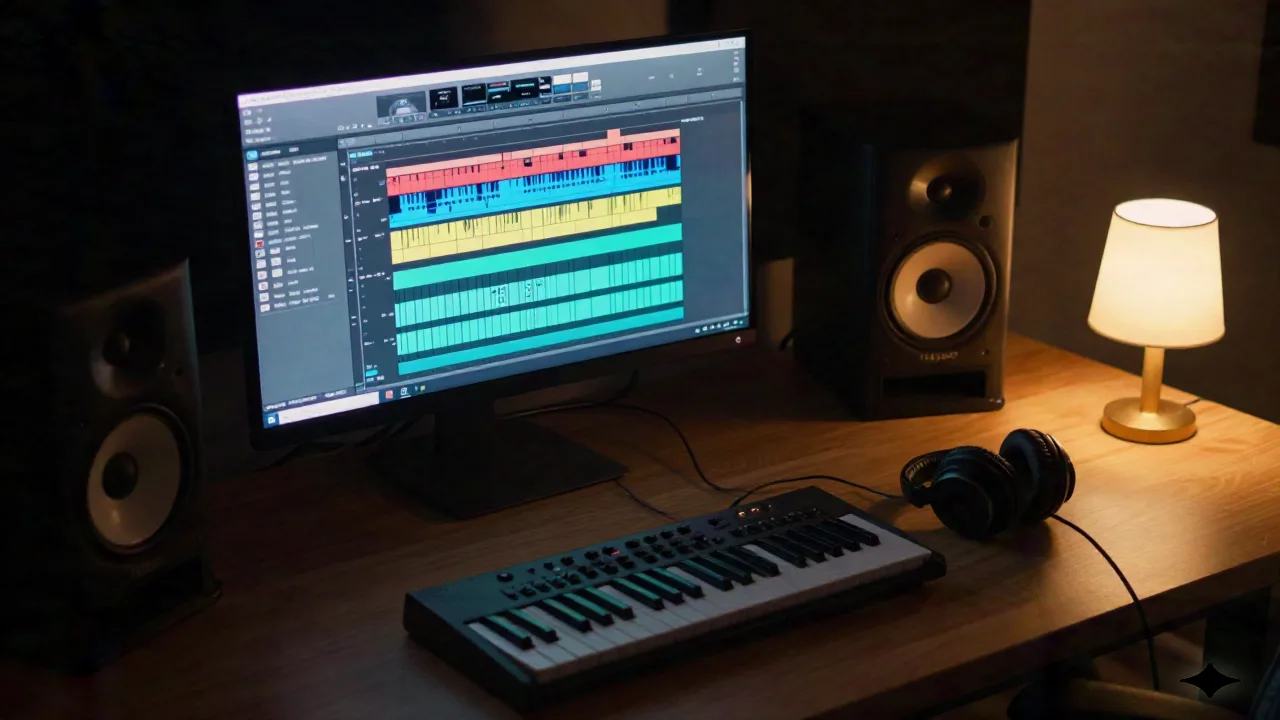
AI music editing means taking a generated track past the first render: swapping an instrument, extending a cue to hit a scene change, pulling a clean stem for a dialogue mix, or nudging one chord without regenerating the whole piece. Prompt-to-song tools get you most of a usable cue in under a minute. The remaining part, the part that actually fits a scene with narration or NPC lines running on top, happens in an editor, not a text box. We ran five tools through a real session to see which ones hold up once you need to touch what they made.
What "AI music editing" means once you're past the first render
Most coverage of Suno, Udio, and Stable Audio treats them as competing jukeboxes: type a prompt, compare which one sounds better. That's generation. Editing is a different job. It's regenerating eight bars without touching the rest of the arrangement. It's pulling the drum stem out because it's fighting a voice-over at 2-4kHz. It's dragging one note up a semitone because the melody clashes with a line of cloned dialogue underneath it.
Four editing patterns show up across the current tools: inpainting (regenerate a selected region, keep the rest), stem separation (isolate individual instruments after the fact), audio-to-audio transfer (restyle an existing clip you didn't generate), and note-level editing (a piano roll you can actually click into). Which one you need depends on whether you're producing music from a text prompt or starting from something else, a client's stems, a placeholder loop, a melody hummed into a phone.
None of these patterns are interchangeable. Reach for inpainting when the arrangement is right and one section needs a rewrite. Reach for stem separation when you need to isolate a part from audio you didn't generate and can't get separate files for. Reach for audio-to-audio when a client hands you a rough reference and asks for "something like this, but bigger." Reach for note-level editing when the problem is a single wrong note, not the whole take.
The session note: we tested every tool on the same 45-second brief, a tense underscore cue for a 90-second game trailer with three lines of NPC dialogue mixed on top. Same brief, five very different editing workflows.
Udio's inpainting vs Suno Studio: two different editing models
Udio's editing model is section-level inpainting: select a range on the timeline, rewrite just that range, and the surrounding audio stays untouched in our tests across a dozen regenerations. v4 outputs 48kHz stereo and extends tracks to 10 minutes without the melodic drift shorter-context generators show past the two-minute mark. For a trailer cue where only the final swell needed reworking, inpainting a 12-second tail was faster than regenerating the full 45 seconds and re-picking a take.
Suno's editing path is different: Suno Studio, bundled into the $24/month Premier tier, drops the generated track into a lightweight DAW with stem access rather than section-level regeneration. That's the better fit if your edit is a mix move (pull the bass, ride the vocal, add a send) rather than a composition change. Suno's free tier caps you at 50 daily credits on the v4.5-all model with no commercial use; Pro at $8/month unlocks v5.5 and commercial rights but not the Studio DAW.
Three use cases where inpainting wins: fixing a bad transition, re-scoring a scene change without a full regenerate, extending a loop past a hard cutoff. One where it doesn't: matching a client's existing stems, since inpainting only touches material the tool generated in the first place.
Stable Audio's audio-to-audio mode: editing a track you didn't generate
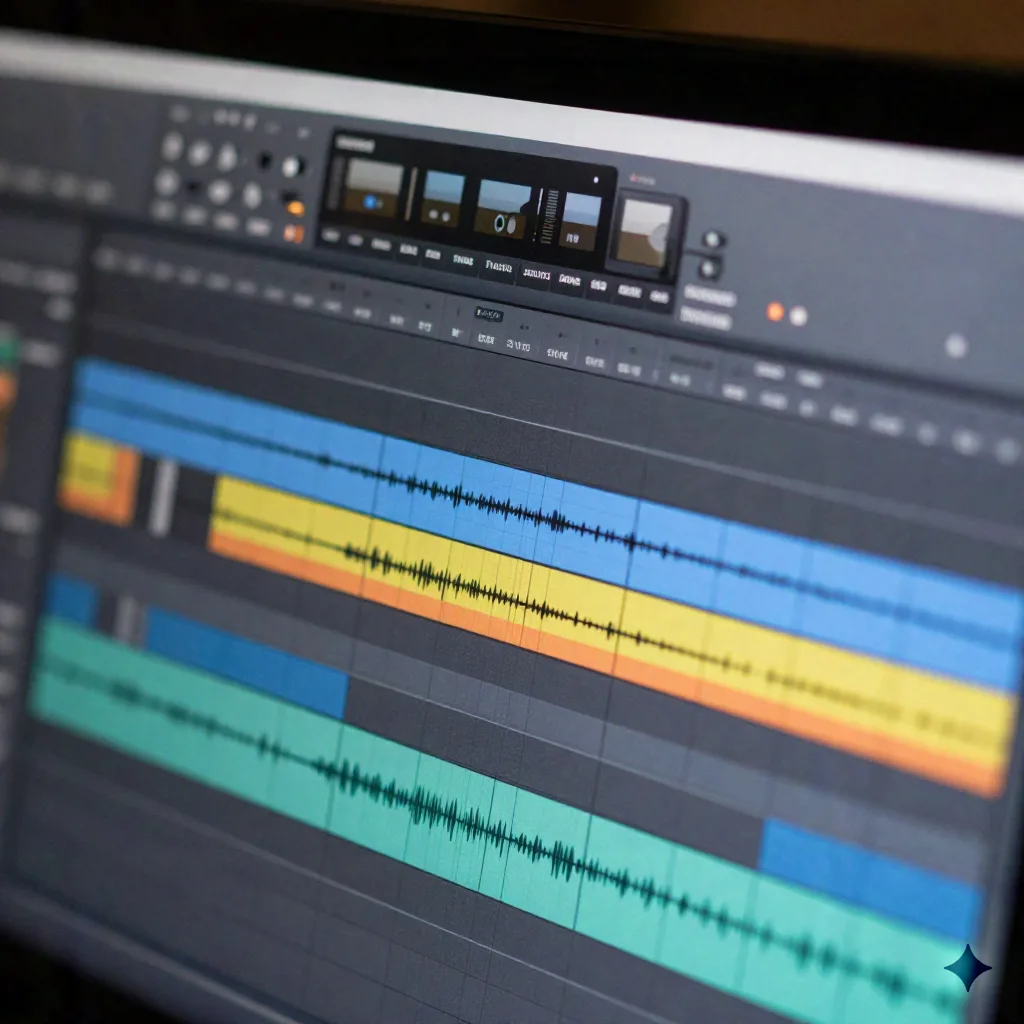
Stable Audio's editing angle solves a problem the other two don't touch directly: you didn't generate the source. Audio-to-audio style transfer takes an existing clip, a rough hum, a placeholder loop, a client's stems, and restyles it while keeping the underlying structure. Inpainting mode extends or completes a clip at either end, useful for stretching a 30-second sting into a 90-second bed without an audible seam.
Output tops out at 44.1kHz stereo, up to 6 minutes per generation. The model family is trained only on data Stability AI has licensing rights to, which matters if a client's legal team asks where the training data came from before a piece ships in a commercial trailer.
Where it falls short for our brief: audio-to-audio transfer changes texture and instrumentation convincingly, but it won't fix a melody that's harmonically wrong against dialogue. That's a note-level problem, not a style problem.
AIVA's piano-roll editor: when you need note-level control
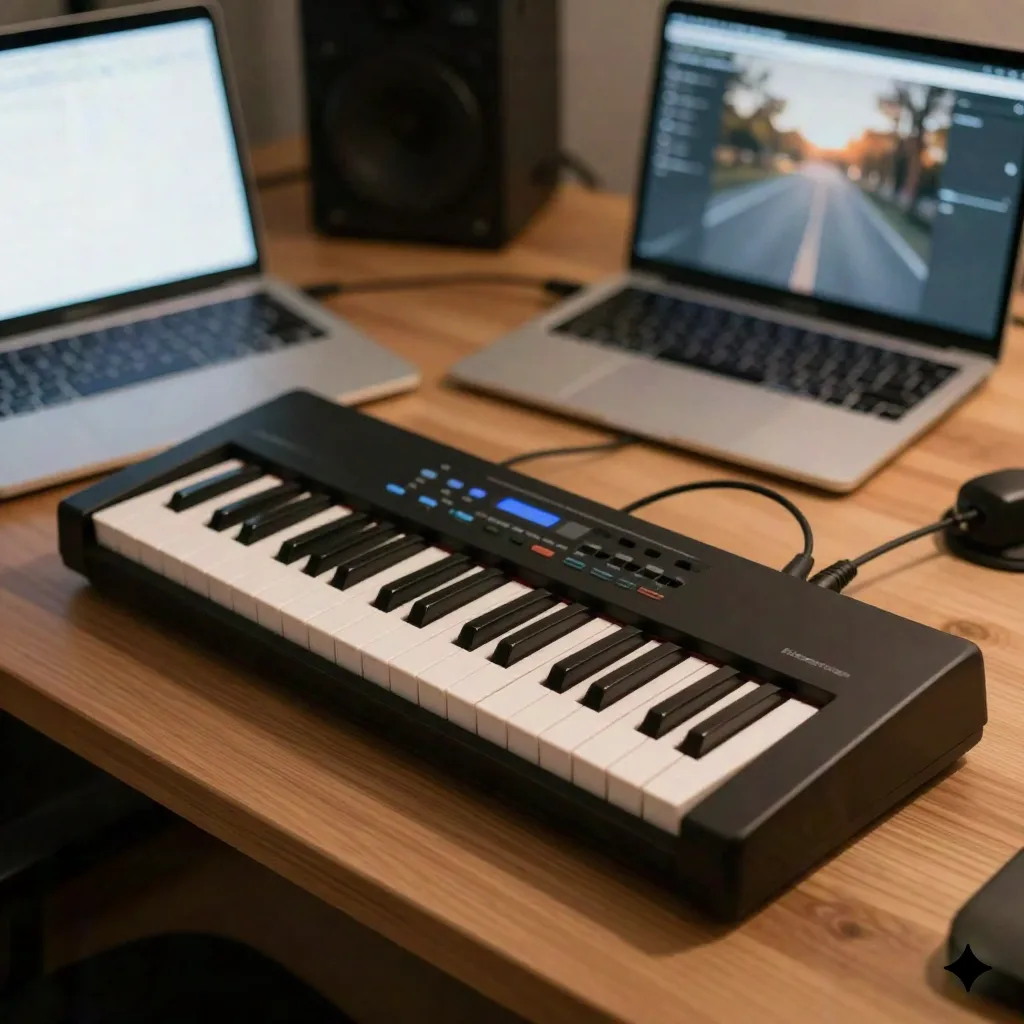
None of the tools above let you click a single note and move it. AIVA does, because it's built around orchestral and cinematic scoring across 250-plus style presets, and its piano-roll editor exposes melody, harmony, and instrumentation for manual tweaks after generation. For the trailer brief, this is where we fixed a diminished chord clashing against the NPC line's pitch. No inpainting tool covers that kind of edit; you need to see and grab the note.
The free plan is non-commercial (3 downloads a month, AIVA keeps copyright, credit required). Standard runs 11 EUR/month billed annually for 15 downloads and limited monetization rights, which is the tier you want the moment a cue ships anywhere public.
Skip AIVA if you need something fast for a weekly podcast intro. The piano-roll workflow rewards the extra ten minutes on a hero cue, not a disposable one.
Soundraw's stem mixer: the fastest path to a clean underscore bed
Soundraw skips text prompts entirely: pick genre, mood, and length, then adjust energy per section and swap instruments through an in-browser mixer. No DAW required, no export-import loop. For a producer who needs a clean instrumental bed under narration by the end of a lunch break, this is the fastest of the five tools we tested, generation to download in under three minutes including instrument swaps.
The licensing pitch is the differentiator worth noting: Soundraw trains only on music its own producers recorded in-house rather than scraped catalogs, so every track ships with a cleaner rights story than most generation-first competitors.
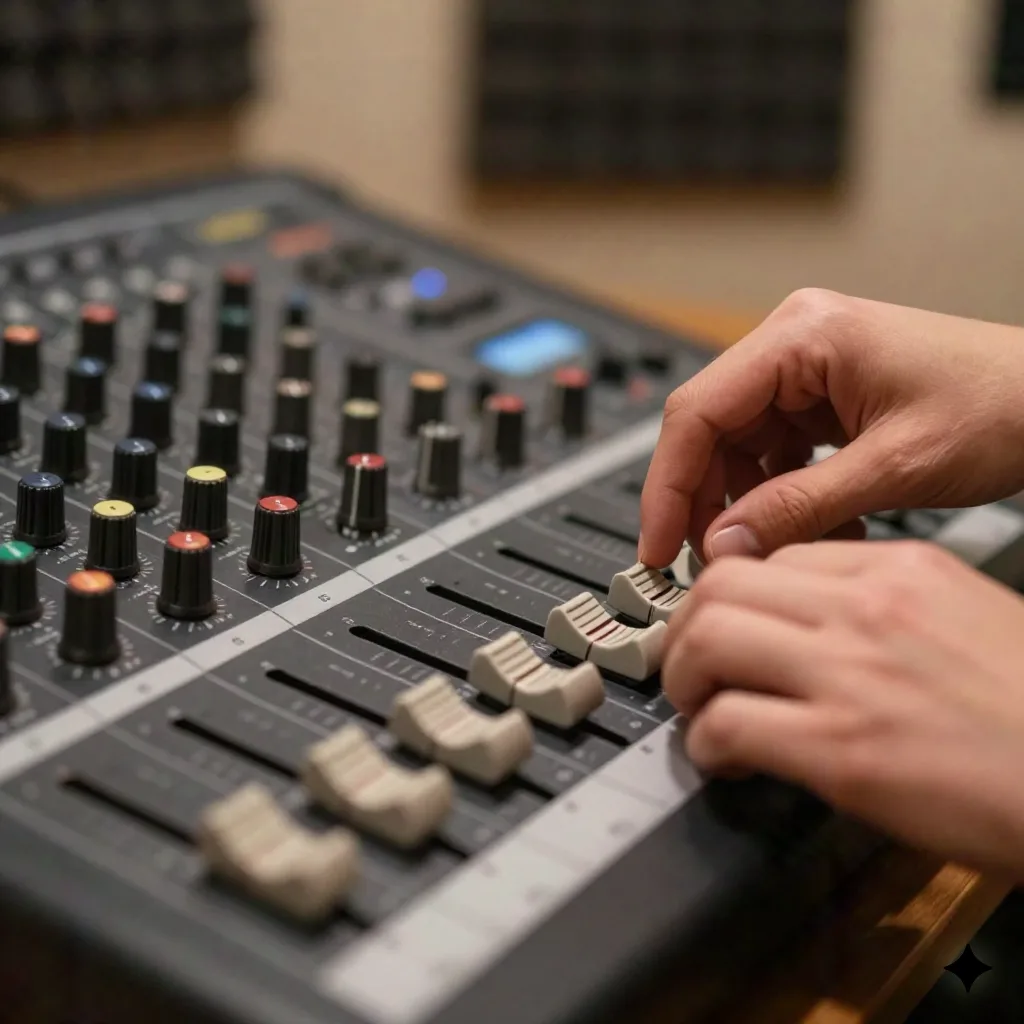
Worth the price if your edits are mix-level (energy, instrumentation swaps, section length). Skip it if you need to change a melody after the fact; Soundraw's editing surface stops at the arrangement layer.
Gain staging and loudness matching against a cloned voice track
This is the step every generation-focused review skips, and it's the one that actually breaks sessions. AI music generators export at wildly inconsistent loudness: we measured exports across the five tools landing anywhere from -9 to -18 LUFS integrated, with no consistent normalization target between them. Drop that straight under a cloned narration track mixed to broadcast spec and the music either buries the voice or disappears under it.
Apple Podcasts recommends an overall loudness around -16 LKFS with a ±1dB tolerance for spoken-word content. For a music bed sitting under narration rather than carrying the scene alone, we typically pull the AI export down another 6-10dB relative to that voice target, then ride a duck on the low-mids where dialogue frequencies sit. None of the five tools handle this automatically; it's a manual pass in your DAW every time.
The session note: Suno and AIVA exports both carried more low-end energy than Udio or Stable Audio at the same perceived loudness. A quick high-pass at 80-100Hz before ducking saved a full dB of headroom on the trailer mix.
The workflow that actually held up across all five tools: import the export at its native loudness, run a loudness meter pass first rather than trusting your ears against a different reference track, pull the whole bed down to roughly -24 LUFS integrated as a starting point under narration, then automate a 3-6dB duck matched to the dialogue's transient envelope rather than a flat gain drop. A flat duck sounds mechanical the moment the dialogue pace changes; an envelope-matched duck tracks the performance instead of fighting it.
The stem-separation workaround: useful for repair, not your main workflow
Stem splitters, Moises, Lalal.ai, RipX, and the AI stem tools now built into Cubase and Logic, get recommended constantly as "the" AI music editing solution. They're not, for our use case. They're a repair tool for material you don't control: pulling vocals off a reference track, isolating a bass line from a demo a client sent over. Run a stem splitter on a track you generated yourself and you're solving a problem inpainting or audio-to-audio mode already solves natively, usually with cleaner separation because the source model has the original stems internally.
Where stem separation earns its place in this workflow: cleaning up a client-supplied reference track before feeding it into Stable Audio's audio-to-audio mode, or isolating a stray instrument from an old AI export that predates any of these tools having native stem access. It's a fallback, not a first move.
We ran the same trailer cue through a stem splitter after exporting from Suno, just to compare. Separation quality on the drum bus was noticeably worse than pulling stems natively through Suno Studio, artifacting around the transients on every kick hit. That's the general pattern: a splitter trained to guess at instrument boundaries in a finished mix will always lose some detail a generator already had as separate data before it bounced to stereo.
What we'd actually load into a session this week
For a trailer or game cue with dialogue on top: Udio for the composition pass, AIVA if a specific chord or melody needs a manual fix, Stable Audio if you're restyling something a client already sent. For a weekly podcast bed or indie audiobook interstitial: Soundraw, because the in-browser mixer beats a DAW round-trip when the deadline is measured in minutes. For anything shipping commercially, check the licensing tier before you check the sound: Warner Music Group's licensing settlement with Suno and UMG's deal with Udio both landed in late 2025, and the commercial-rights lines between free, Pro, and Premier tiers moved as a result. Read the current terms before a cue ships in anything monetized, not the terms you remember from six months ago.
The tool that "sounds best" in a demo comparison is the wrong first question. The right one is whether you can still get in and fix the twelve seconds that don't sit right under your dialogue, without starting over.